AR Draw Sketch – Drawing Apps
- 4.5
- Rating
- 1.00M
- Installs
- Free
- Price
 Analysis by App-foxy
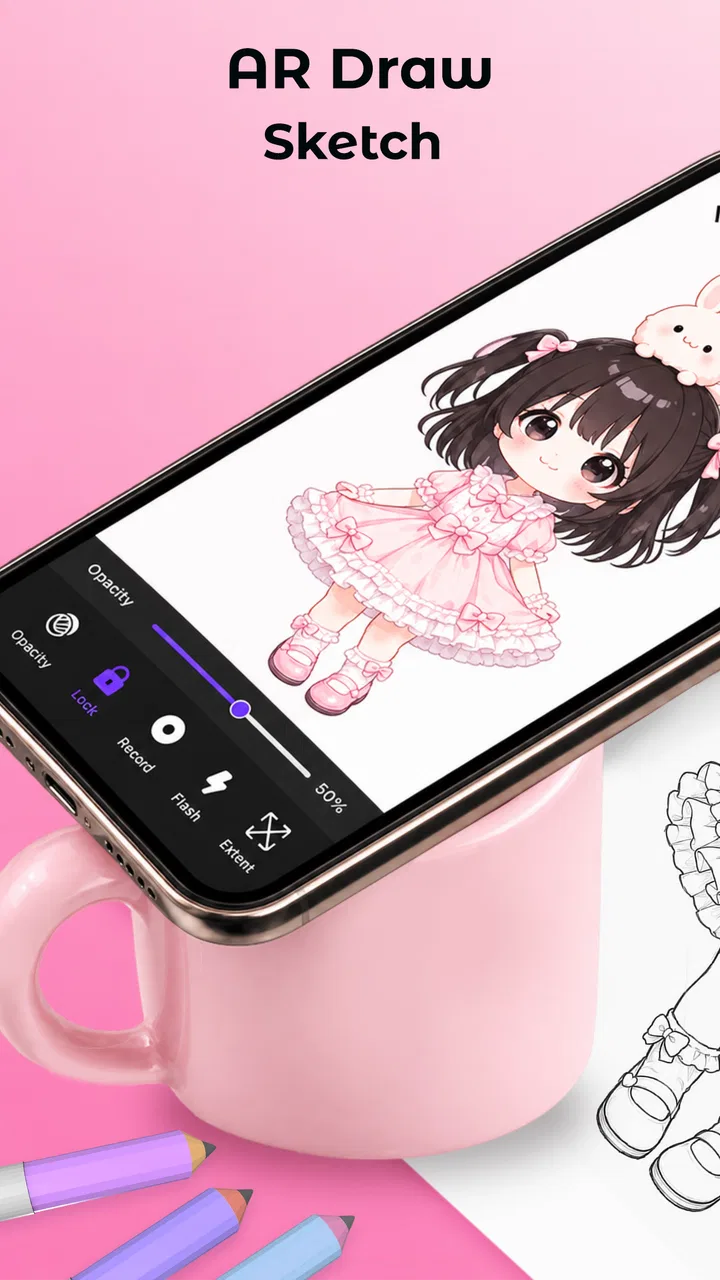
AR Draw Sketch – Drawing Apps is the kind of art tool I would suggest to someone who wants help getting proportions right without starting with a completely blank page. Instead of treating drawing as a test of perfect freehand control, it turns a phone into a guided reference surface: choose an image, line it up, and use the camera view to follow its shapes. I found that approach more approachable than opening a traditional drawing app and facing an empty canvas.
The app sits in the Art & Design category and is developed by Maxlabs Photo Editor. It is free to install, with optional purchases listed from $14.99 to $39.99 per item. Its age rating is Everyone, so the concept is easy to understand for children, beginners, casual hobbyists, and adults who simply want a relaxing way to practice. The current version is 1.1.1, and it works on Android 7.0 or later.
What makes it worth considering is not the promise of turning anyone into an artist overnight. The useful part is the workflow. The camera-assisted tracing idea can reduce the intimidation of drawing, while the template selection gives me somewhere practical to begin. The best results come when I use it as a guide rather than as an automatic replacement for observation and practice.
You May Also Like

 Blood Strike: 2.5 Anniversary
Blood Strike’s Loadouts Turn Every Drop Into a Tactical Gamble
A close look at Blood Strike’s custom loadouts: how fast access to signature weapons reshapes its battle royale rhythm, rewards preparation, and narrows the gap between fights.

 Pandora - Music & Podcasts
Pandora’s Music Is Easy to Start, but Harder to Recover
Pandora’s strength is its low-effort path from a seed to a station. Its weak spot is how much confidence it asks you to place in connection, setup, and quiet recovery.

 8 Ball Pool
 Is Built on Rivalries, Rematches, and Routine
A close look at the rivalries, rematches, shared routines, and unanswered safety questions that turn a quick pool match into a persistent mobile community.

 Samsung Music
’s Quiet Strength Is Playing What You Already Own
Its reach comes less from spectacle than from dependable access to a personal library. That simplicity is both the app’s strongest retention engine and its ceiling.

 AccuWeather: Weather Radar
AccuWeather Review: A Quick, Clear Forecast for Everyday Decisions
For everyday plans, the best forecast is the one you can understand quickly. AccuWeather makes rain timing, radar, and local conditions easy to act on, with a few trade-offs.

 Hill Climb Racing
Why Hill Climb Racing Still Turns Crashes Into One More Run
A tiny car, a bumpy hill and one more upgrade: Hill Climb Racing keeps resurfacing because its simple chaos makes every near-miss feel personal.
More From Our News Desk



How the drawing workflow feels in everyday use
The first thing I noticed is that the app is built around immediate visual guidance. A normal sketching app asks me to create marks directly on a digital canvas. Here, the purpose is different: the image and the real-world surface need to work together. That makes the experience feel closer to placing a transparent reference over paper than to using a conventional illustration program.
That distinction matters when deciding whether this is the right download. If I want layers, detailed brush engines, typography, color correction, or a full digital painting workspace, I would look elsewhere. If I want to learn the outline of a face, animal, object, or decorative design by following a visible reference, the AR approach is much more relevant.
The store summary points to an AR sketch camera and a range of templates, and those two elements define the app’s appeal. A ready-made template can save time when I am not sure what to draw. The camera view then gives the reference a practical role instead of leaving it as a small picture on the screen. I can concentrate on shape, spacing, and the order of my strokes rather than repeatedly checking whether my proportions are drifting.
I would still prepare the workspace before beginning. A stable phone position, a well-lit sheet of paper, and a surface that does not move make a noticeable difference to any camera-guided drawing process. This is not a weakness unique to the software; it is simply the trade-off of using the phone as part of the drawing setup. If the device shifts halfway through a sketch, the reference relationship becomes less useful and I may need to realign it.
Speed expectations before starting a sketch
The app’s basic idea should feel quick to understand because it is focused on one clear task: using a camera-assisted view to help draw. I do not need to learn a complicated professional interface before seeing why it exists. That makes it a better fit for a short creative break than a large art suite that demands a long setup session.
Perceived speed will depend on how quickly I can choose a template and arrange the physical drawing area. The actual creative process is not just a matter of tapping a button. I need to position the phone, adjust the paper, and find a comfortable angle. A few seconds spent on that preparation usually saves frustration later, especially for outlines where small shifts are easy to notice.
For a quick daily exercise, I would choose a simple template first rather than beginning with a dense image. This is one of the more useful ways to judge the experience fairly. A simple outline lets me see whether the camera guidance feels natural, while a highly detailed reference adds drawing time and visual clutter that may have nothing to do with the app’s responsiveness.
The template system also affects the sense of speed. Having multiple starting points is more efficient than searching for an image externally, editing it, and then trying to make it suitable for tracing. That convenience is especially helpful for younger users or anyone who wants to start drawing immediately instead of managing files and settings.
What happens during longer or heavier drawing sessions
A short outline and a longer, detailed sketch ask different things from both the user and the phone. With a simple subject, I can keep my attention on the main contours. During a more involved drawing, I may repeatedly pause, reposition my hand, check the reference, and return to smaller details. The longer the session becomes, the more important it is to keep the device and paper arrangement consistent.
I would not judge the app only by how pleasant the first minute feels. The real test is whether the camera-guided view remains useful after several stages of a drawing. In practice, a good workflow is to block in the largest shapes first, then add smaller features only after the main proportions look right. This reduces the cost of correcting mistakes and prevents me from spending time on details that are already misaligned.
That method reveals a subtle strength. The app can encourage a more disciplined drawing order without forcing me into a formal lesson. I naturally begin with broad shapes because they are easier to follow through the reference view. Once those are in place, I can use the remaining guidance for eyes, edges, patterns, or other smaller elements. It is a practical bridge between tracing and learning how a drawing is constructed.
There is also a trade-off for heavy use: the phone becomes part of the physical workspace, so I cannot treat it like a passive canvas. My hand, the paper, and the device all compete for space. A compact desk may feel cramped, and a very large drawing may be awkward to keep inside the camera’s useful view. Someone planning detailed illustrations on oversized paper may prefer a tablet-based drawing application instead.
Stability, alignment, and recovering from interruptions
Reliability here is not only about whether the app opens. It is also about whether the drawing setup stays understandable when I pause, move the phone, or return after an interruption. A camera-guided tool is naturally more sensitive to physical changes than a standard sketchpad app. If the phone angle changes, the reference may no longer match the marks already on the paper, even if the application itself is still running normally.
My practical advice is to treat alignment as part of the workflow, not as a one-time chore. Before drawing details, I would confirm that the main reference points still sit where I expect them. If I need to move the phone, I would do it between stages and recheck the broad outline before continuing. This simple habit is more valuable than rushing through the setup and discovering later that the eyes, corners, or outer edges have shifted.
The recovery question is especially important for casual users. If I close the app, change position, or lose the camera view, I should expect to spend some time restoring the physical arrangement rather than assuming the paper will automatically line up again. That is the main difference from a conventional digital canvas, where the artwork remains attached to the document. With this app, the relationship between screen and paper is part of the experience.
For that reason, I recommend taking a quick photo of the work at major stages if the drawing matters to me. This is not a replacement for saving inside the app; it is a simple personal backup of progress on paper. It also helps me compare the early proportions with the finished result and see where my freehand decisions improved or drifted.
Device limits and the physical setup
The minimum operating-system requirement is Android 7.0, which keeps the app accessible to many older Android phones. Still, an operating-system requirement does not tell me exactly how comfortable every device will feel. Camera quality, screen size, available space, and general hardware condition can all influence the experience. A phone with a small display may make fine reference details harder to follow, while a larger screen can be easier to read but more difficult to position over a small workspace.
Resource demands are also tied to the camera-based nature of the tool. I would avoid assuming that every phone will behave identically, particularly during long sessions or when the device is already busy with other applications. Closing unnecessary background apps and keeping the phone steady are sensible preparation steps. They do not transform the software, but they remove avoidable sources of distraction while drawing.
Lighting deserves more attention than many first-time users expect. A dark room, strong reflections, or a patterned surface can make the physical drawing harder to see clearly. I prefer even light that illuminates the paper without shining directly into the camera. This is one of the non-obvious trade-offs of AR drawing: the app may be simple to operate, but the surroundings become part of its performance.
Privacy-conscious users may also want to think about the setting in which they use any camera-based application. I would use it over a clear desk or drawing surface and avoid pointing the camera at unrelated personal material. That keeps the session focused and reduces accidental visual clutter. The app’s Everyone rating makes it approachable for a broad audience, but adults should still guide younger children through sensible phone and workspace habits.
Who gets the most from this app
Beginners are the obvious audience, but I think the app has value beyond a first attempt. Someone returning to drawing after a long break can use a template to rebuild confidence without committing to a full course. A parent and child can choose a simple subject together, set up the phone, and turn a short afternoon activity into a shared project. A hobbyist can also use the guided view to study how a reference breaks down into large and small shapes.
It may be particularly useful for people who struggle with proportion rather than imagination. I often know what I want to draw but cannot judge the relative size of each part once I start. A camera-guided reference gives me an external check. The important lesson is to gradually rely less on the overlay: first follow the guide closely, then look away for a few strokes, and finally compare the result. That turns a tracing session into a small observation exercise.
The app is less suitable for a professional illustrator who needs precise control over every digital mark. It is also not my first choice for painting, animation, photo manipulation, or complex graphic design. The camera-guided workflow has a clear purpose, and its simplicity becomes a limitation when I need the broader toolset of a mature creative suite.
Someone who dislikes preparing a physical surface may skip it as well. The experience makes more sense when I have paper, a pen or pencil, and enough room to place the phone. If I only want to draw during a commute or while lying on a sofa, a standard mobile sketchbook is more convenient because it does not depend on alignment between a screen and the real world.
A realistic everyday scenario
Imagine I have twenty minutes after work and want to make a birthday card rather than scroll through another feed. I can choose a template that suits the recipient, place a sheet of paper on the table, and use the camera view to establish the main outline. I would begin with the largest shapes, pause to check the phone position, and then add only the details that fit the card’s size.
The useful part of this scenario is that I do not need a complete illustration plan before beginning. The template gives me a starting structure, while the paper lets the final result feel personal. I can change the colors, add a handwritten message, or simplify details as I go. The app supplies guidance, but the finished card still reflects my decisions rather than looking like an untouched digital export.
For a child, I would simplify the same activity further. I would choose a recognizable outline, keep the phone in a fixed position, and encourage the child to name the shapes they are following. That makes the session less about copying every line perfectly and more about understanding curves, spacing, and visual order. The Everyone rating supports this broad accessibility, but the adult’s role in setting up the device remains important.
How it compares with ordinary drawing alternatives
Compared with a blank paper sketch, the app offers more direction at the beginning. A traditional sketchbook is cheaper in the long run if I already know what I want to draw, and it never needs a phone position or camera view. However, it does not provide the same immediate visual guide. For a beginner who repeatedly abandons drawings because the first proportions look wrong, that guidance can be the difference between continuing and stopping.
Compared with a regular mobile drawing app, this one is more physical and less flexible. A digital canvas is better for undoing, recoloring, resizing, and keeping an editable project. It is also easier to use in a small space. The AR approach wins when I want to practice hand control on real paper or create something tangible, but it loses when I need a polished digital file or a large number of revisions.
Compared with searching for tutorial videos, the template-and-camera workflow is more direct. A video can explain technique in depth, while this app gives me a reference to follow at my own pace. I would use a tutorial when I want to understand shading, perspective, or anatomy, and use this app when I want a clear subject in front of me without stopping to match a teacher’s timing.
The free entry point makes experimenting easy, but the optional purchases deserve attention before committing to a long-term habit. Items are listed between $14.99 and $39.99 each, so I would start with the free experience and decide whether the available workflow genuinely fits my needs before paying for anything. For occasional sketching, the free option may be enough; for someone who wants broader template access, the value depends on how frequently they will use it.
My performance verdict after weighing the trade-offs
I see AR Draw Sketch – Drawing Apps as a focused beginner-friendly tool rather than a complete art studio. Its strongest quality is the way it lowers the first barrier to drawing: I can work from a visible guide instead of guessing every proportion. The template approach also helps me start quickly, while the camera view makes the activity feel more hands-on than drawing entirely on a screen.
My expectations would remain realistic. The phone, lighting, paper, and alignment all affect the session, so the app cannot remove every source of friction. Longer drawings require more care, and moving the device can mean rebuilding the reference relationship. Those are meaningful limitations for users who want effortless, fully digital editing.
Still, I would recommend it to a friend who says, “I want to draw, but I do not know where to begin.” The average rating of 4.8 from around 2.8 thousand ratings and more than 500 thousand installs suggest that the concept has found a receptive audience, while the developer’s focused approach is easy to understand. I would choose it for guided paper sketches, creative activities with children, and proportion practice—not for professional illustration or advanced digital production.
My final recommendation is simple: try it if the physical AR workflow sounds enjoyable, and skip it if you mainly want a traditional digital canvas. Used patiently, it can turn a blank sheet into a manageable drawing exercise. Its real value is not automatic artistic perfection; it is giving me enough structure to begin, observe, and gradually make more of the decisions myself.
FAQs for AR Draw Sketch – Drawing Apps
01What is AR Draw Sketch – Drawing Apps and how does it work?
AR Draw Sketch is an innovative application that uses augmented reality to assist users in drawing by overlaying images onto a real-world surface through your device’s camera. This allows you to trace and sketch the images directly. It’s ideal for both beginners and experienced artists looking to enhance their skills.
02Is AR Draw Sketch suitable for beginners?
Yes, AR Draw Sketch is designed with beginners in mind. The app provides step-by-step guidance and a variety of templates to help users learn and improve their drawing skills. The augmented reality feature makes it easier to understand proportions and shapes by allowing you to trace directly onto any surface.
03What devices are compatible with AR Draw Sketch?
AR Draw Sketch is compatible with most Android and iOS devices that support augmented reality features. This typically includes devices with ARCore (Android) or ARKit (iOS) capabilities. Before downloading, check that your device meets the necessary requirements to ensure a smooth experience.
04Are there any in-app purchases or subscriptions in AR Draw Sketch?
AR Draw Sketch offers a range of features for free, but it also includes optional in-app purchases. These may include additional templates, ad-free experiences, or advanced drawing tools. While the basic functionality is free, purchasing these extras can enhance your creative experience.
05How can AR Draw Sketch improve my drawing skills?
AR Draw Sketch helps improve drawing skills by providing an interactive platform where users can practice with real-time guidance. The augmented reality feature allows you to understand depth, proportion, and perspective better. With consistent practice using the app’s templates and tracing capabilities, users can see significant improvements in their artistic abilities.
Pros
- Easy-to-use interface for beginners.
- Variety of drawing tools available.
- Supports multiple image formats.
- Offers real-time AR drawing guides.
- Regular updates with new features.
Cons
- Limited free version features.
- Requires a stable internet connection.
- Occasional AR tracking issues.
- Ads can be intrusive at times.
- Some tools need in-app purchases.

AR Draw Sketch – Drawing Apps
Gallery